 Cardinal Locator
A question that comes up in support requests is how the demo on the Cardinal Locator site is set up. Until now, the answer was custom CSS. Version 1.12.0 of the WordPress store locator plugin makes that look a setting, with redesigned styling options in both the admin settings and on your site. Keep your existing look, or switch to the new Modern style preset and its layouts with a few simple settings, as pictured below. The live preview lets you try your changes before you save.
The Modern style preset
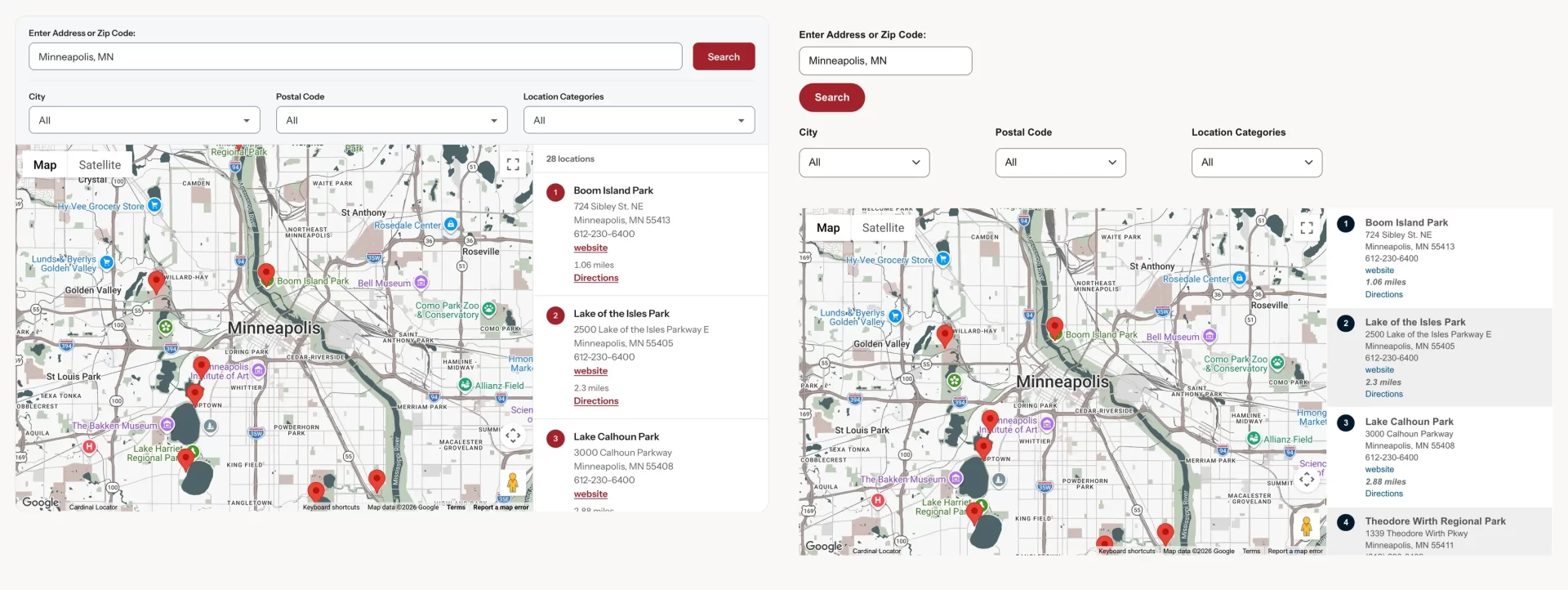
The Modern preset is the look you see on the Cardinal Locator demo, built into the plugin. It puts the search form above a framed map, with a scrolling list of results beside it. Each result is labeled with a letter that matches its pin on the map (lists of more than 26 results are numbered instead), so it’s easy to match a location in the list with its place on the map. Selecting a result highlights it in the list and centers it on the map.
You can make it match your site without writing any CSS:
- Accent color: used for buttons, links, the result labels and the map pins. If your color is too light for white text, the plugin automatically switches to dark text and darker shades for links and focus outlines, so everything stays readable.
- Corner style: square, rounded or pill-shaped.
- List position: results to the right of the map, to the left, or below it.
- Font: match your theme’s font, or use a system font.
The Modern preset adapts to the space it has. On phones, and in narrow content areas, the list moves below the map. It was built and tested for accessibility (WCAG 2.2 AA), so keyboard users can move through the results and screen reader users hear the number of results after each search.
The original look is still available as the Classic preset, and existing sites keep it when they update.
Sidebar and Overlay layouts
The Modern preset comes with two more layouts, for when you want the map to be the main feature. You can try all of them on the live demo using the style switcher above the locator.
Sidebar
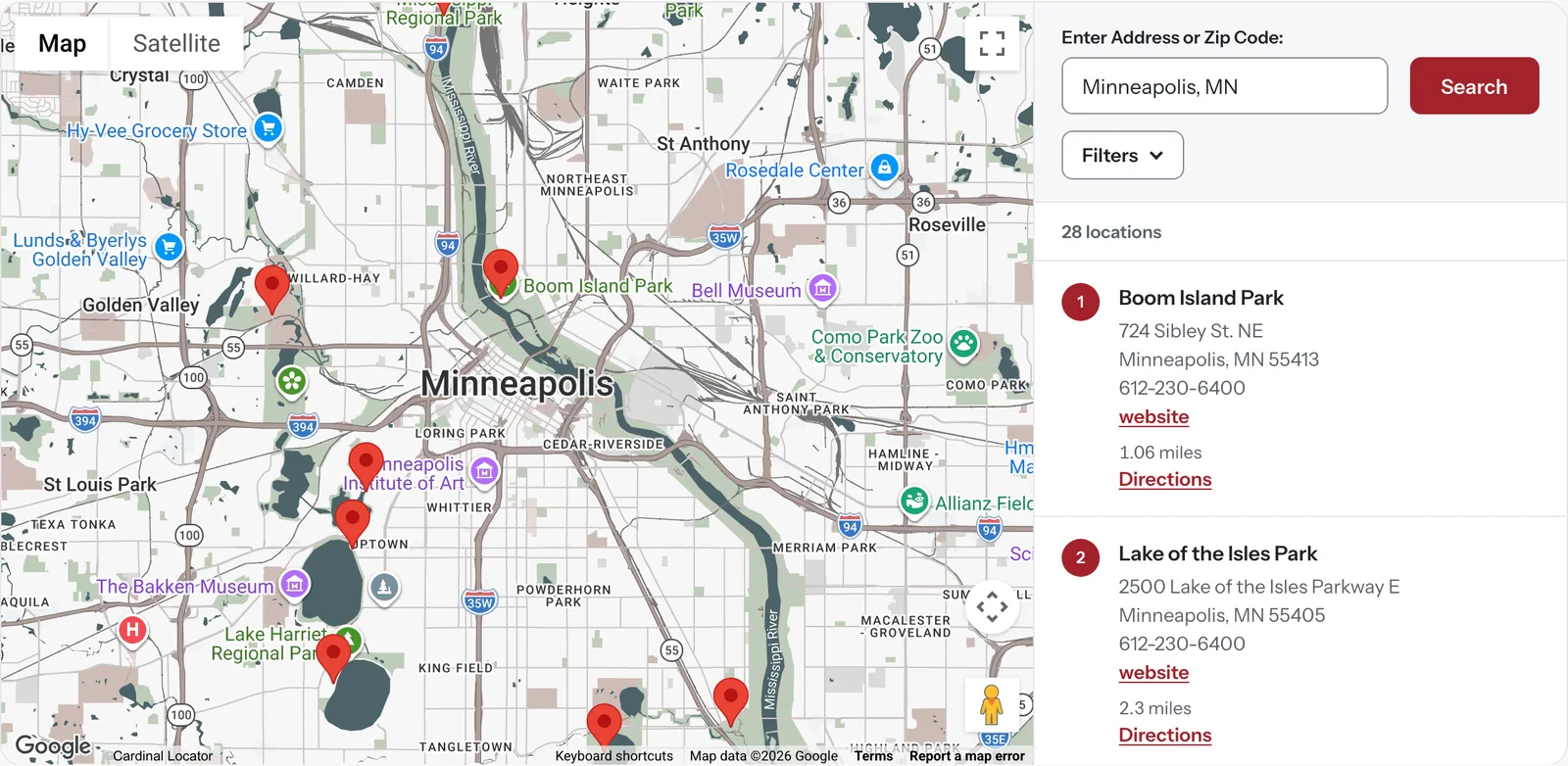
The Sidebar layout puts the search form, filters and results together in one panel, next to a full-height map. The panel can sit on the right or the left. Filters are tucked behind a Filters button, which shows how many are in use, so the panel stays uncluttered until someone needs them.
Overlay
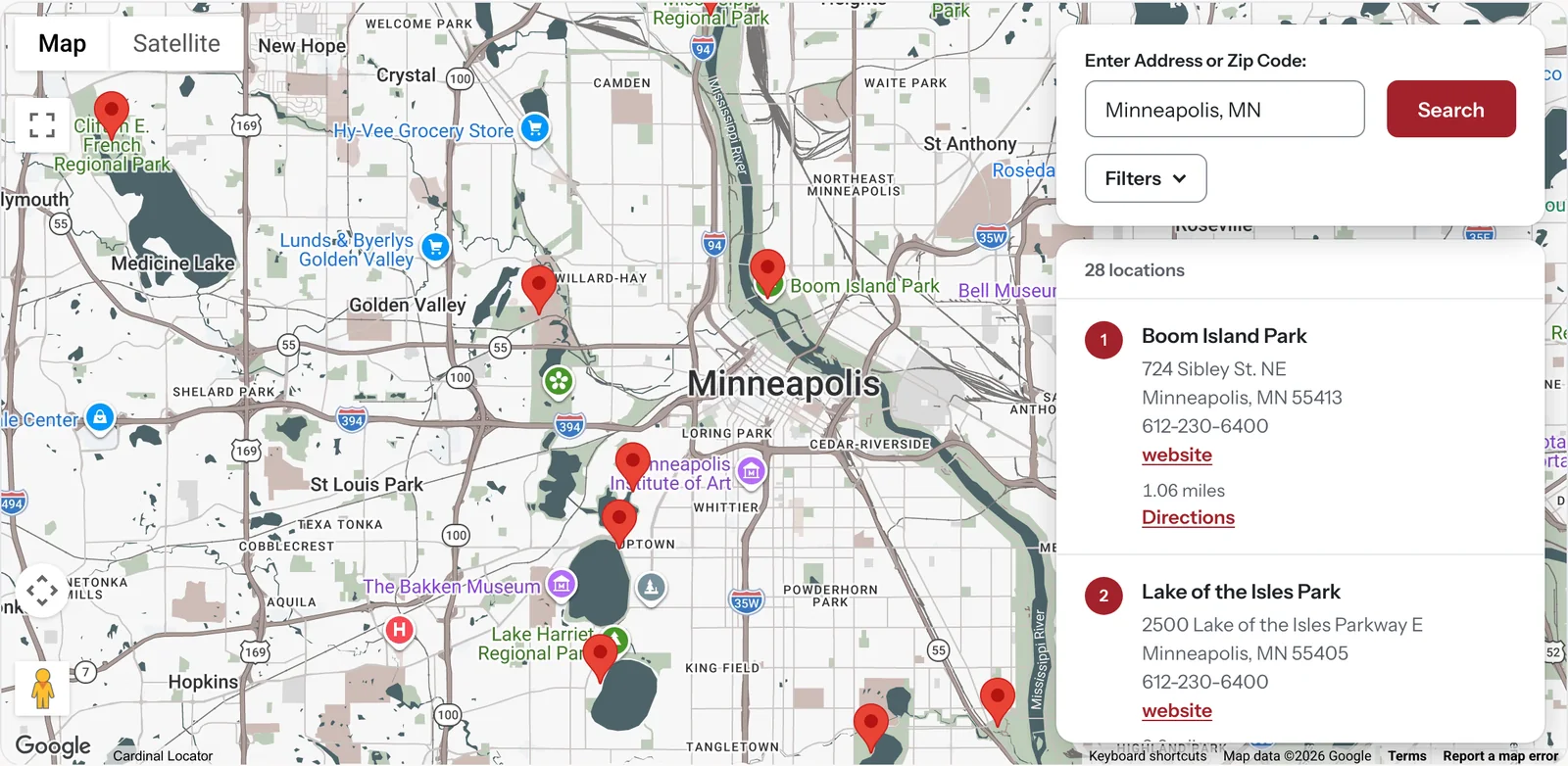
The Overlay layout uses the full width for the map, with the search form and results floating over it as cards, on the right or the left. The map works around the cards:
- Results are fitted into the open part of the map, not hidden behind the cards.
- A selected location is centered in the visible area.
- Google’s map controls move to the opposite side.
- Info windows open clear of the cards.
On phones and in block themes
Both layouts stack on narrow screens, with the search form, then the map, then the results, so they work as well on a phone as on a desktop.
If you use a block theme, set the Locator block to Wide or Full width so the Sidebar and Overlay layouts have room to breathe. Block themes’ default content column is often too narrow for a map beside a panel. The Style Settings documentation has the details.
A new Style Settings screen with live preview
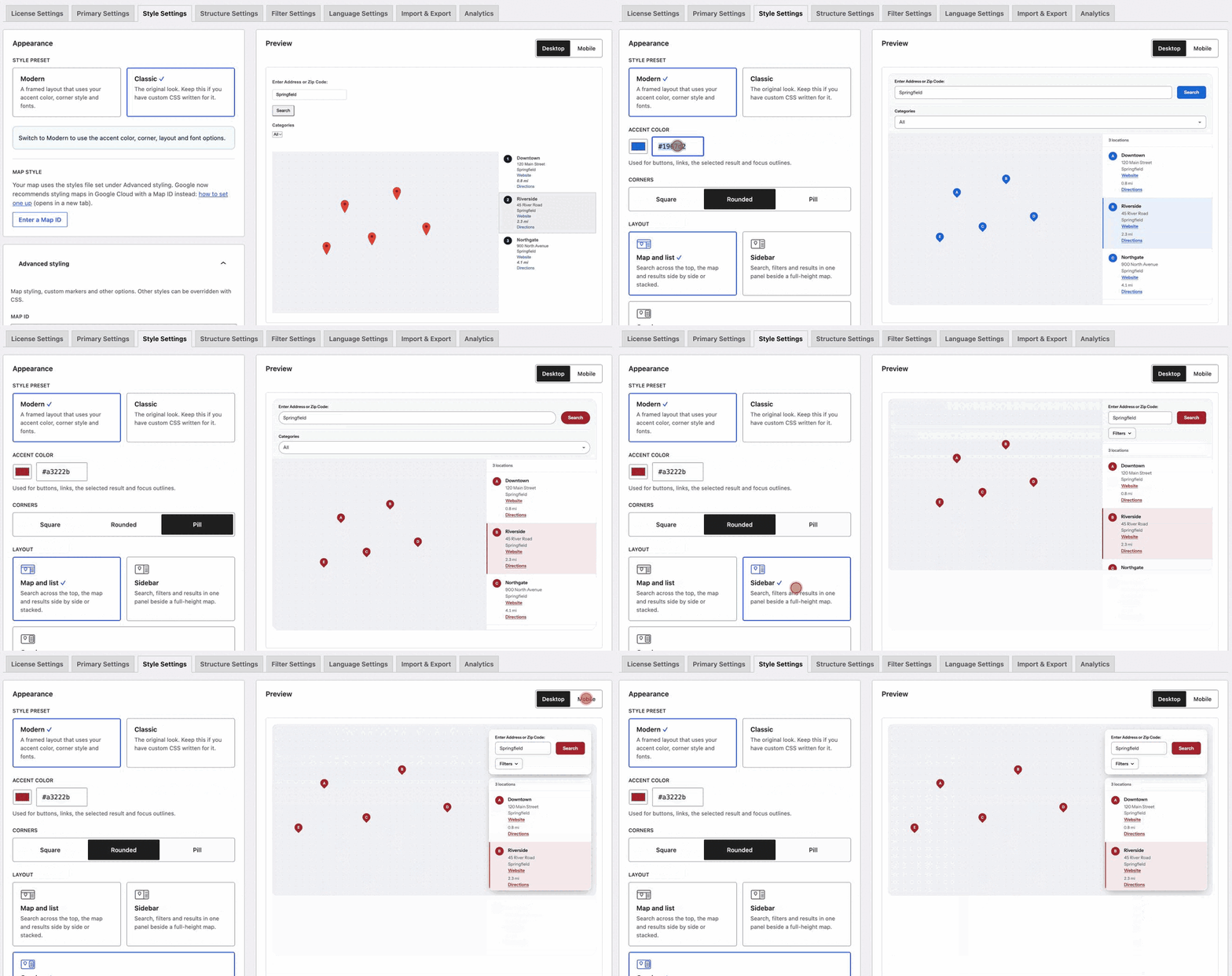
The Style Settings tab has been rebuilt around a live preview of your locator. As you change the preset, layout, accent color or corners, the preview updates immediately, so you can see the result before anything changes on your site. Switch the preview between desktop and mobile widths to check both.
The preview uses sample locations together with your own marker images and, on block themes, your theme’s font, so it’s a close match for what visitors will see. Settings save without reloading the page.
Every existing style option is still there. Map ID, custom map styling, marker images, list colors and the rest have moved into an Advanced styling panel, which opens automatically if your site uses any of them.
Better address search
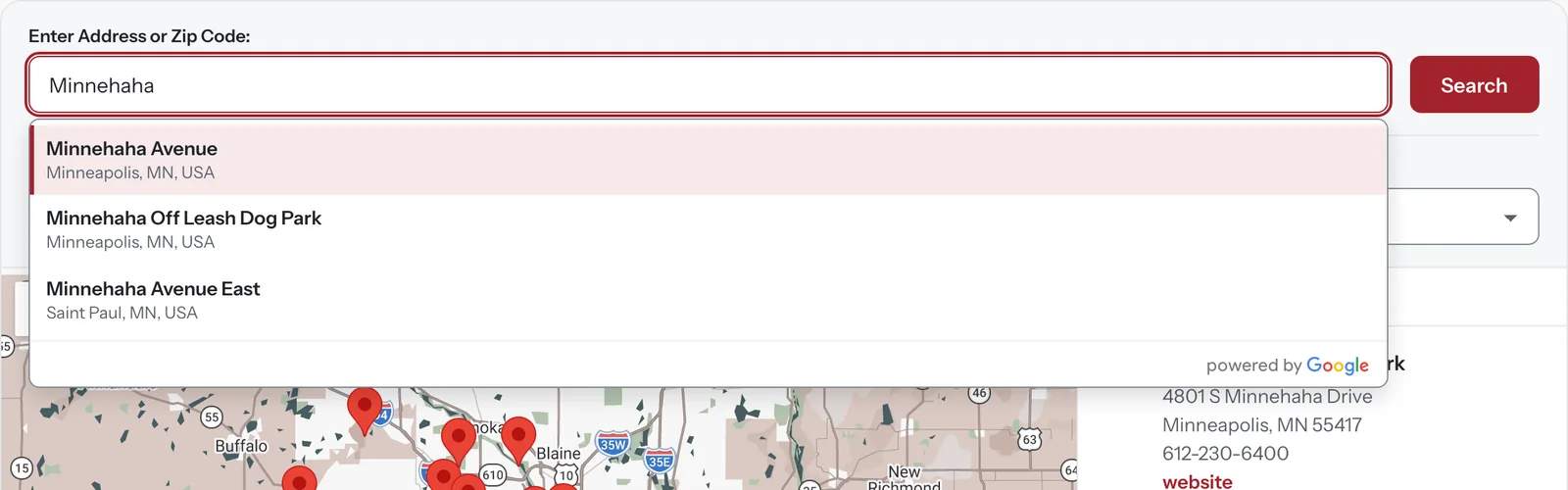
Address suggestions now support Google’s Places API (New). As visitors type, suggestions appear in an accessible list under the search field: they can use the arrow keys to move through them, and screen reader users hear how many are available. Suggestions now favor the area the map shows, follow your region setting, and by default stick to addresses, cities and ZIP codes, without businesses or landmarks. A new Autocomplete suggestions setting lets you change that.
Settings export and import
The Import Locations tab is now Import & Export, and adds settings export and import. Download all of your Cardinal Locator settings as a file, then import it on another site, for example to copy your setup from staging to production, or to keep a backup before making changes.
Importing shows what will change before anything is saved, and settings the file doesn’t include stay as they are. Your license key is never exported, and your Google Maps API keys are only included if you choose to, since keys are usually restricted to one site.
Developers can do the same from the command line:
wp cardinal-locator settings export
wp cardinal-locator settings import cardinal-locator-settings-2026-10-17.json
Smaller improvements
- Accessibility: results can be reached with Tab and selected with Enter or Space, focus moves sensibly into and out of directions and pop-ups, and the locator works with Windows High Contrast mode.
- Right-to-left sites: addresses display correctly, and the Modern preset follows the reading direction.
- More reliable license activation: activation and update checks now identify themselves properly to the license server. If activating your license ever failed on your host, this release should fix it.
- Map info windows: the empty gap at the top is gone, with the location name moved up beside the close button.
- Translations now load in the block editor and for the locator blocks.
- Analytics: the doughnut charts list their items below the chart, so long location names are readable.
For the complete list of changes, view the full changelog below or select View version 1.12.0 details beside the update on your WordPress dashboard’s Plugins or Updates screen.
New: the Multi Site license
Until now, the choice was a license for one site or a license for unlimited sites, with nothing in between. The new Multi Site license covers up to three sites for $220 a year, a better fit for small portfolios, businesses with a few brand sites, or agencies looking after a handful of clients. Like every Cardinal Locator license, it includes the full plugin, updates and support. Licenses differ only in how many sites you can activate, and annual renewals are still 50% off.
Updating: what to expect
Updating keeps your locator exactly as it looks today. Existing sites stay on the Classic preset, and nothing changes until you choose otherwise.
To try the new look, go to Settings > Cardinal Locator > Style Settings and select Modern. If you’ve written custom CSS for the Classic look, it may need adjusting after switching, and the live preview shows the result before you save.
Version 1.12.0 requires WordPress 6.6 or later and PHP 7.4 or later. Most sites already meet these, and WordPress won’t install the update on sites that don’t.
Try it out
See the Modern preset, both new layouts and the style switcher on the live demo, and read the Style Settings documentation for every option. Update from your WordPress dashboard as usual, and if anything doesn’t work as expected, get in touch with support.
Version 1.12.0 Changelog
- Added the Modern style preset: a framed layout with a search form row, the map and a scrolling location list side by side, lettered result badges with matching lettered map pins in the accent color, a highlighted selected result and a “Loading map…” placeholder. The list moves under the map in narrow columns as well as on phones.
- Added Modern preset options for accent color, corner style (square, rounded or pill), list position (right, left or below the map) and font (match the theme or a system font), all set from Style Settings without custom CSS.
- Added the Modern preset as the default for new installs. Existing sites stay on Classic, the original look, so custom CSS written for it keeps working; switch to Modern from Settings > Cardinal Locator > Style Settings.
- Added the Sidebar layout to the Modern preset: search, filters and results in one panel beside a full-height map, on the right or the left. The results come before the map in the tab order, and the layout stacks on narrow screens.
- Added the Overlay layout to the Modern preset: the search and results float as cards over a full-width map, on the right or the left. Results are fitted to the open part of the map, a selected location is centered there, Google’s map controls move to the far side, and info windows and pins are kept clear of the cards. It stacks like the Sidebar on narrow screens.
- Added a “Filters” button to the Sidebar and Overlay layouts that shows how many filters are in use.
- Added a results count above the Modern location list, announced to screen reader users after each search, filter change or page change.
- Added a redesigned Style Settings tab with a live preview of the locator at desktop and mobile widths, using sample locations, the site’s custom, category and active marker images and, on block themes, the theme’s font. Changes preview immediately and save without reloading the page.
- Added an “Advanced styling” panel to Style Settings with the existing style options (Map ID, custom map styling, marker images and dimensions, list colors and the control link), unchanged. It opens automatically on sites that use any of them.
- Added automatic contrast handling for the accent color: button text switches between white and dark, and links and focus outlines use a darker shade when needed so they stay readable (WCAG 2.2 AA).
- Added support for Google’s Places API (New) address autocomplete, with suggestions in an accessible list under the plugin’s own search field (keyboard navigation and screen reader announcements) in both presets. The legacy autocomplete is used automatically when Places API (New) isn’t enabled for the API key.
- Added a “Check API key” button under “Google Places autocomplete” in Primary Settings that shows which Places APIs the key can use.
- Added the bh_sl_autocomplete_legacy filter for developers to force the legacy autocomplete.
- Added an “Autocomplete suggestions” setting: addresses, cities and ZIP codes (the new default, without businesses or landmarks), cities, regions and ZIP codes only, or everything. Suggestions also favor the area the map shows and follow the form’s region select.
- Added a “Map style” note to Style Settings explaining where the map’s own colors come from (a Google Cloud map style attached to a Map ID), with a button that opens the Map ID field, and a warning in Advanced styling when a map styles file is set alongside a Map ID, since Google ignores the file in that case.
- Added settings export and import. The Import Locations tab is now “Import & Export” and available for every data source: download all Cardinal Locator settings as a JSON file, or upload one, review what will change and import it. The license key is never exported, and the Google Maps API keys only when chosen; importing a file without keys keeps the site’s own. Imported values are validated like a settings page save, and settings the file doesn’t include stay as they are.
- Added WP-CLI commands for settings export and import: wp cardinal-locator settings export and wp cardinal-locator settings import.
- Added a note on the Import & Export tab explaining that the CSV location import is available when the data source is “Register Locations Post Type”.
- Added wide and full alignment to the Locator block, so the Sidebar and Overlay layouts have room in block themes, whose content column is often too narrow for them.
- Added support for the new Multi Site license.
- Confirmed compatibility with WordPress 7.1.3.
- Fixed the empty gap at the top of map info windows (Google added a header row for the close button in 2024): the location name now moves into that header, next to the close button. Custom info window templates work unchanged; the first element with the loc-name class is used.
- Fixed the “Cardinal Locator” map link covering Google’s map attribution on narrow maps. It’s now placed with Google’s own map controls: beside the Google logo on wider maps, and just above it on narrow ones.
- Fixed searches after closing the modal window: the modal didn’t reopen and the results didn’t update.
- Fixed the modal window opening on page load with a default location, and loading a hidden map with every location when “Full map start” or “Full map start blank” is enabled. In modal mode the map now appears after a search.
- Fixed an unusable map styles file clearing the saved path. The file (exists and contains valid JSON) is now checked on every save, and the previously saved path is kept if it fails.
- Fixed the Modern preset’s close icons being too faint (now 6:1 contrast) and invisible in Windows High Contrast mode.
- Fixed Google Maps deprecation warnings for the advanced marker pin options in current Maps JavaScript API versions, while keeping support for older versions.
- Fixed the address geocoding error notice in the location editor not being translatable.
- Fixed translations not loading for the location editor and block scripts, and the JavaScript translation files missing from release packages.
- Fixed the Top Viewed Locations and popular search terms analytics charts not being sorted by count.
- Fixed misspelled text domains on the origin marker override settings.
- Fixed release packages including a development build configuration file, and the Multi Site edition’s license product name.
- Fixed various WordPress coding standards issues reported by ESLint and PHPCS.
- Improved keyboard access in the Modern preset: results can be reached with Tab and selected with Enter or Space, and the selected result is identified to screen readers.
- Improved info windows opened from the location list: keyboard focus stays in the list, and the info window is labeled with the location name for screen readers.
- Improved the Modern preset’s inline directions and popup mode for keyboard and screen reader users: their close icons work as buttons, focus moves into the directions or popup when they open and returns when they close, and the popup keeps Tab inside it.
- Improved address suggestions for screen readers with a separator between the place and its region.
- Improved Windows High Contrast mode support in the Classic preset: buttons and the selected result stay visible.
- Improved right-to-left support: location details (list, info window and address suggestions) take their direction from their own text, so addresses in a left-to-right script read correctly on right-to-left sites, and the Modern preset’s text and selected-result marker follow the writing direction.
- Improved address autocomplete loading: when Places API (New) isn’t available for the key, the legacy autocomplete is used for the rest of the visit instead of repeating the failed request on each page.
- Improved the analytics doughnut charts by listing each item with its count below the chart, so long location names wrap instead of being cut off and the data is readable as text.
- Improved the location editor panels by replacing an experimental WordPress component with a stable one.
- Updated the Modern preset’s list rows to be styled with CSS instead of inline background colors. The Classic preset keeps the list background color settings.
- Updated the minimum requirements to WordPress 6.6 and PHP 7.4 to match what the plugin already needs: the block editor scripts use the JSX runtime WordPress includes from 6.6, and the CSV import uses PHP 7.4 syntax. The plugin header now declares both, so WordPress prevents activation on older versions.
- Updated the translation template and the Dutch (Nederlands) translation, and added translator comments to Site Health messages.