 Cardinal Locator
Version 1.13.0 of the WordPress store locator plugin turns a few things that used to need a code snippet into settings: a maximum zoom level, so a search that finds one location doesn’t zoom to street level, and showing only some categories in a locator. It also adds a fixed search radius, makes switching from another store locator plugin easier, and fixes a few long-standing bugs along the way.
A fixed search radius
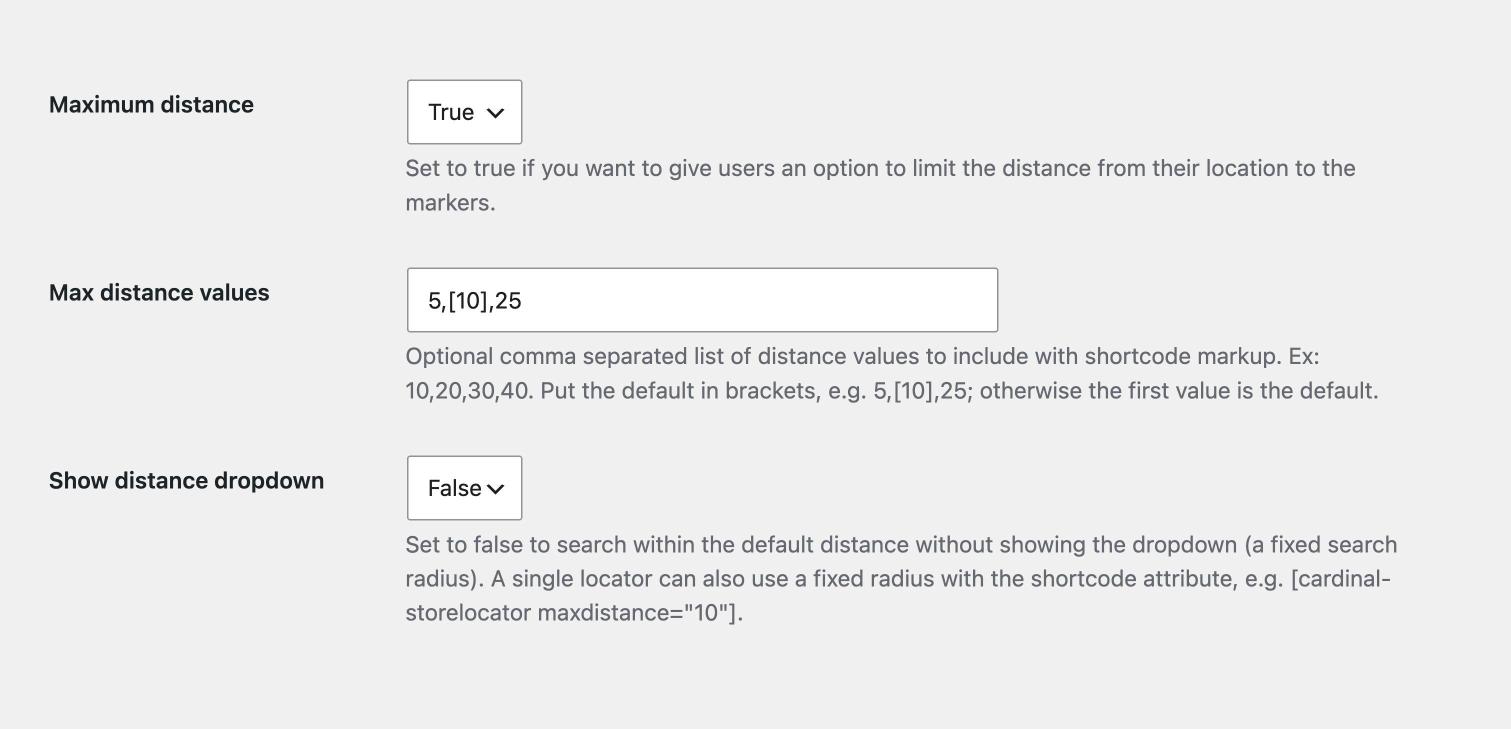
The maximum distance dropdown lets visitors choose how far to search. Sometimes you’d rather decide that for them: delivery areas, regional dealers, or a short list of nearby branches.
The new “Show distance dropdown” setting in Structure Settings does that. Set it to false and every search uses your default distance, with no dropdown on the page.
You can now choose which value is the default, too: put it in brackets in Max distance values, for example 5,[10],25. Without brackets, the first value is still the default.
To set a fixed radius for just one locator, use the new maxdistance shortcode attribute: [cardinal-storelocator maxdistance="10"].
Maximum zoom level
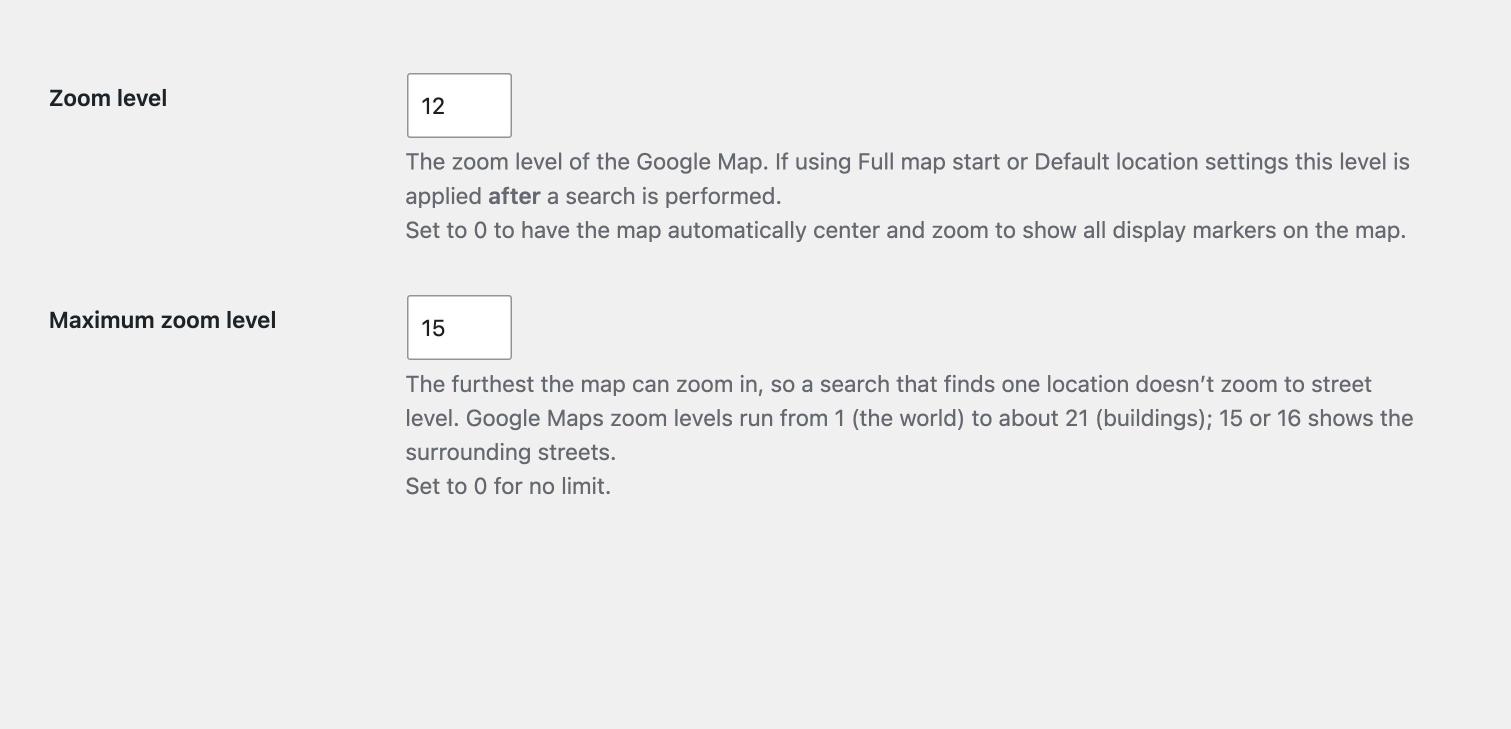
When a search finds a single location, Google Maps zooms right in, often to street level. The new “Maximum zoom level” setting in Primary Settings sets how far the map can zoom in. Google’s zoom levels run from 1 (the whole world) to about 21 (buildings); 15 or 16 shows the surrounding streets. It’s 0, no limit, until you set it.
Show only some categories
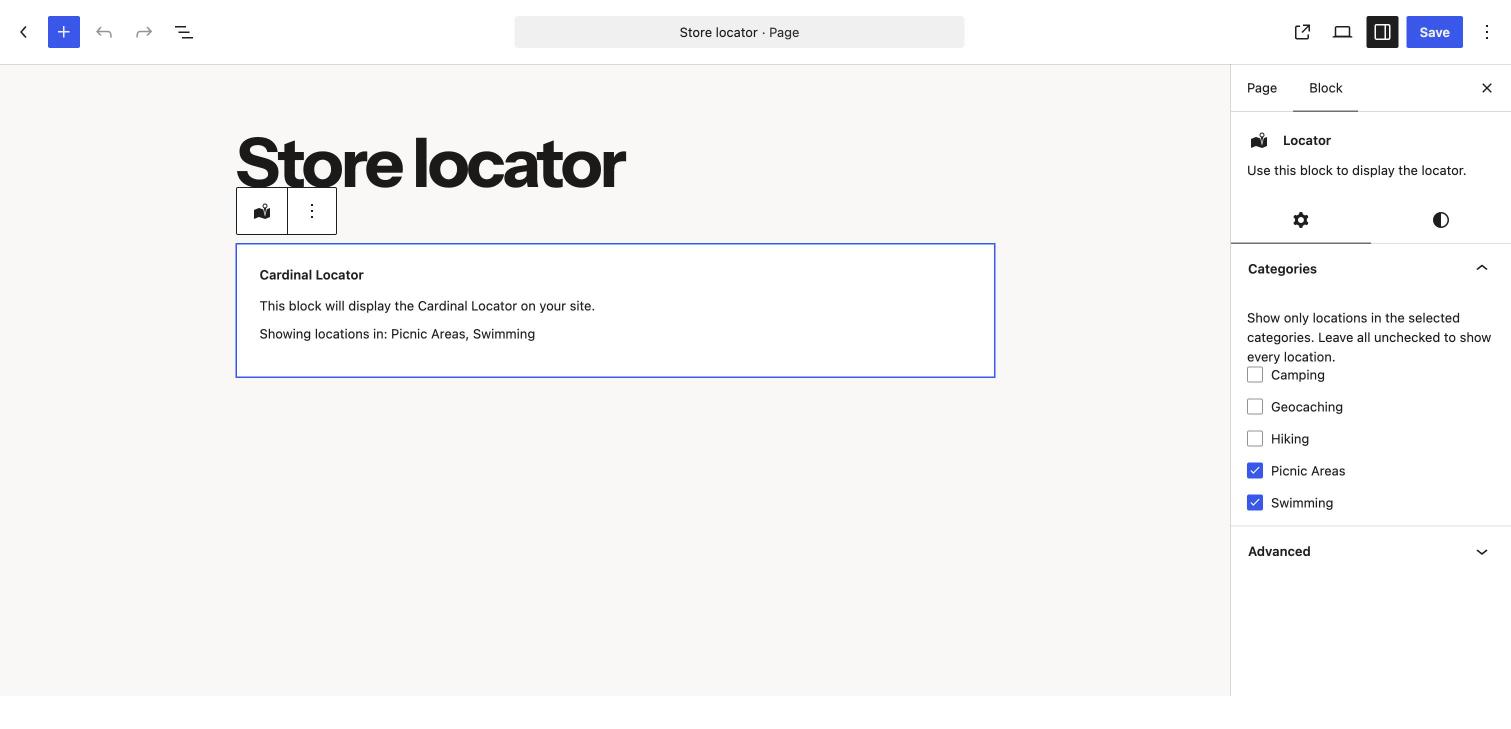
A new category shortcode attribute shows only the locations in the categories you list, by slug or name: [cardinal-storelocator category="retail,outlet"]. Filter options for other categories are disabled automatically, so visitors can’t filter their way to an empty list.
The Locator block has the same option: select the block and tick the categories you want under Categories in the block settings.
Switching from another store locator plugin
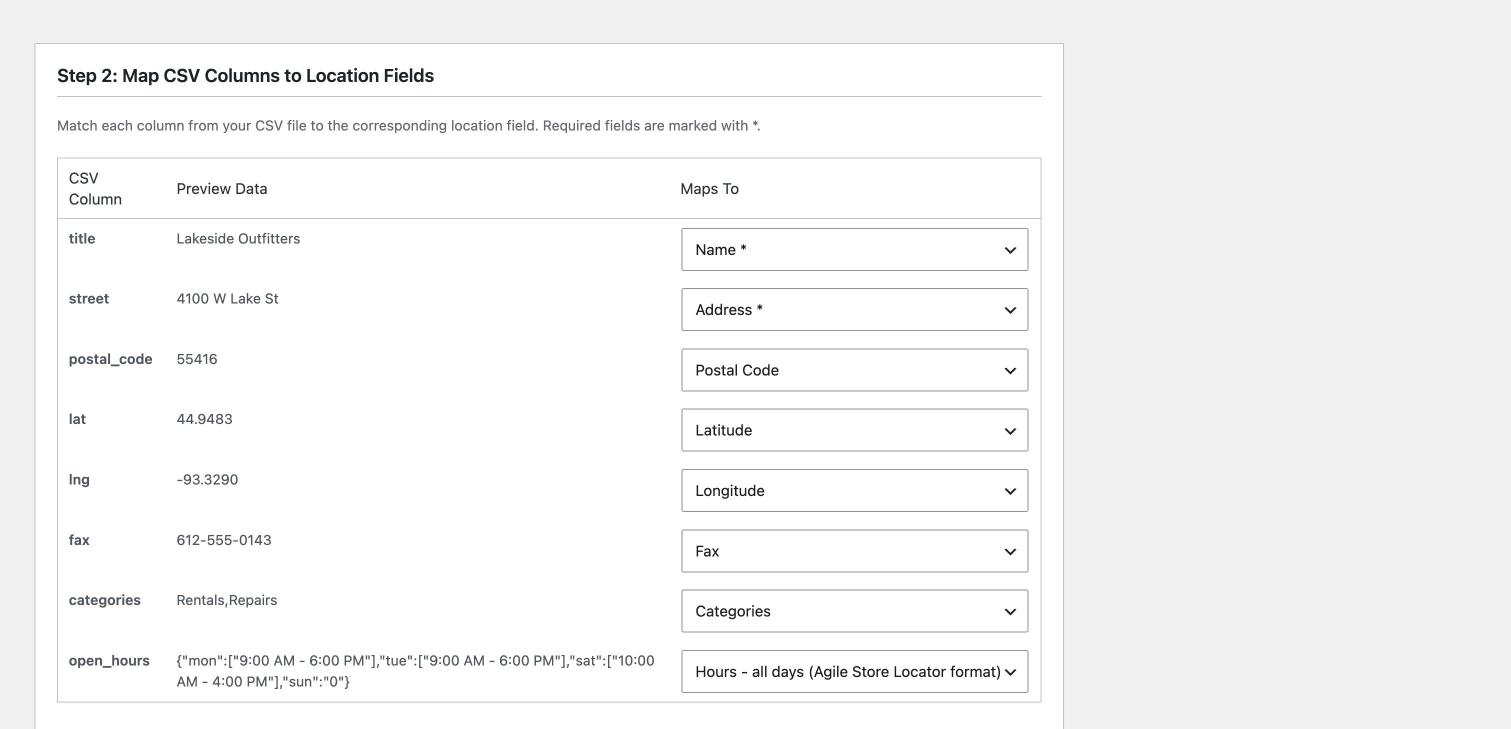
If you’re moving from another WordPress store locator plugin, its CSV export now imports with much less work. The CSV import recognizes the column names other locator plugins use, so their files map automatically. Agile Store Locator’s opening hours column is converted into Cardinal Locator’s day-by-day hours, and there’s a Fax column in the sample CSV.
Coordinates in your file are kept as they are, including when you re-import to update existing locations, so positions you’ve fine-tuned aren’t replaced by a fresh geocode. Imported locations with coordinates are also ready for radius searches straight away.
Check your Google Places API key in Site Health
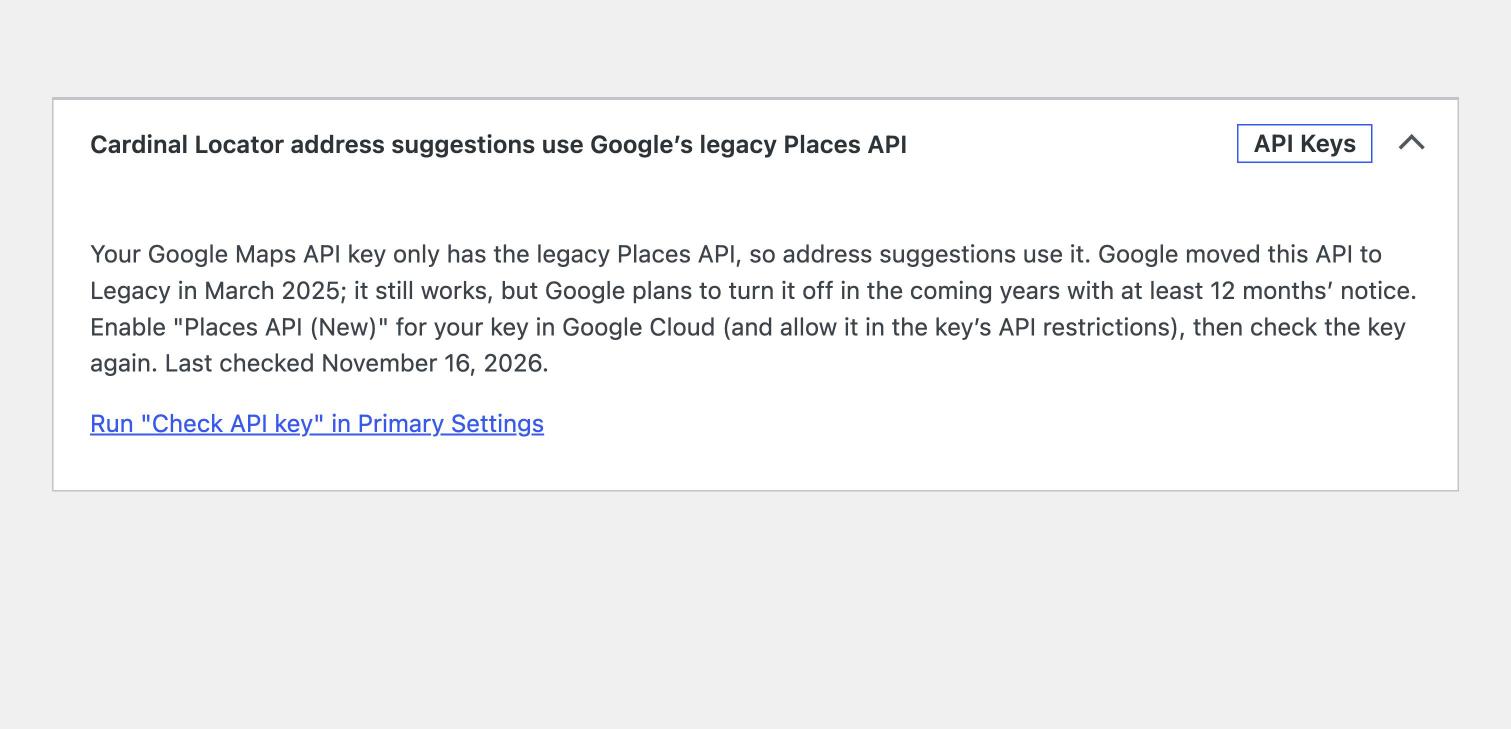
Google moved its original Places API to Legacy in March 2025. Address suggestions in Cardinal Locator already use the newer Places API (New) when your key allows it, and fall back to the legacy API when it doesn’t.
Site Health (Tools > Site Health) now tells you which one your site is using, based on the “Check API key” button in Primary Settings, with the steps to enable Places API (New) if your key needs it. If a theme or plugin forces the legacy API with the bh_sl_autocomplete_legacy filter, Site Health mentions that too.
Smaller improvements and fixes
- Updates: Dashboard > Updates > “Check again” now checks for new Cardinal Locator versions straight away, instead of up to 3 hours later.
- Location editor: dragging the pin in the block editor’s Location Preview now saves both coordinates. Before, only the longitude was saved.
- Radius searches on sites using the High location count option now use a dragged pin’s position, matching the map, instead of the geocoded address.
- Block themes: shortcode attributes such as
datapathandmaxdistancewere ignored in block themes. They now work everywhere. - Filter Settings: Move up, Move down and Remove buttons on each filter, with labels and screen reader announcements. Several bugs are fixed too, including unsaved changes lost when dragging a filter, and pressing Enter in a field adding a filter instead of saving.
- Image fields in the settings and on location categories use the WordPress media library.
- License activation shows the license server’s message when something goes wrong, instead of a spinner that never stops.
- The plugin’s admin screens no longer depend on jQuery.
Updating: what to expect
Nothing changes on your site until you turn on the new settings: there’s no maximum zoom limit by default, and the distance dropdown stays visible.
One small thing to check: the distance label used to print with an extra colon (“Within::”). It now prints exactly as you set it in Language Settings, so if you removed the colon from your label to work around that, add it back if you want one.
Version 1.13.0 requires WordPress 6.6 or later and PHP 7.4 or later, the same as 1.12.0.
Try it out
See the locator on the live demo, and update from your WordPress dashboard as usual. If anything doesn’t work as expected, get in touch with support.
Version 1.13.0 Changelog
- Added a “Maximum zoom level” setting to Primary Settings: the furthest the map can zoom in, so a search that finds a single location doesn’t zoom to street level. Set to 0 for no limit (the default).
- Added a “Show distance dropdown” setting to Structure Settings. Set it to false to always search within the default distance without showing the dropdown, for a fixed search radius.
- Added a way to choose the default distance: put it in brackets in Max distance values, e.g. 5,[10],25. Without brackets the first value is still the default.
- Added the maxdistance shortcode attribute for a fixed search radius on one locator, e.g. [cardinal-storelocator maxdistance="10"].
- Added the category shortcode attribute to show only locations in the given location categories, by slug or name, e.g. [cardinal-storelocator category="retail,outlet"]. Other categories’ filter options are disabled automatically.
- Added a Categories setting to the Locator block, with the same effect as the category shortcode attribute.
- Added a Site Health check that shows which Google Places API address suggestions use, based on the last “Check API key” result in Primary Settings, with steps to enable Places API (New) when needed.
- Added recognition of the column names other store locator plugins use in their CSV exports to the CSV import, so their files map automatically, plus a Fax column in the sample CSV.
- Added an “Hours – all days (Agile Store Locator format)” CSV import field, which converts Agile Store Locator’s opening hours column into Hours 1-7. Separately mapped day columns take priority.
- Added keyboard and screen reader support to Filter Settings: Move up, Move down and Remove buttons on each filter, labels for every field, and announcements when filters are added, moved or removed.
- Changed the image upload buttons in the settings and on location categories to use the WordPress media library.
- Changed license activation to show the license server’s error message instead of a spinner that never stops.
- Changed the admin scripts to no longer depend on jQuery.
- Fixed Dashboard > Updates > “Check again” not checking for Cardinal Locator updates; new versions could take up to 3 hours to appear.
- Fixed dragging the pin in the block editor’s Location Preview saving only the new longitude.
- Fixed radius searches in High location count mode using a location’s geocoded address instead of a pin dragged to a new position (as shown on the map).
- Fixed CSV-imported locations with coordinates missing from High location count searches until the next daily background check, and re-imported coordinates not updating them. Re-imports now also keep the coordinates in the file instead of geocoding the address.
- Fixed shortcode attributes (such as datapath, maxdistance and category) being ignored in block themes.
- Fixed the CSV import refusing files whose columns weren’t named “name” and “address” even after they were mapped.
- Fixed five Filter Settings issues: unsaved changes lost when dragging a filter, newly added filters that couldn’t be dragged, a JavaScript error when dragging them, a new filter that could overwrite a saved one on save, and pressing Enter in a filter’s field adding a filter instead of saving the settings.
- Fixed the bh_sl_map_settings filter giving every Google Maps option the value of the last one when more than one option was set.
- Fixed checkbox and radio filters wrapping unevenly in the Modern preset; they now line up in columns.
- Fixed the distance label showing a double colon (“Within::”). The label now prints exactly as set: if you removed the colon from your label to work around this, add it back.
- Fixed number fields with a minimum or maximum of 0 not limiting the value.
- Security: the Location Preview coordinate update now checks that the user can edit the location, and is no longer available to logged-out visitors.
- Developer: the section and field render functions in the settings files are now declared at the top level instead of inside the settings registration functions. Names and output are unchanged.
- Confirmed compatibility with WordPress 7.1.4.