 Cardinal Locator
Google has moved its original Places API, the one behind address suggestions in most WordPress store locators, to “Legacy”. If your suggestions work today, they’ll keep working for now. But new Google Cloud projects can’t use the legacy API at all, and existing ones will eventually be switched off. This guide explains what changed, how to check which Places API your key uses in Cardinal Locator, and how to enable Places API (New).
What changed at Google
On March 1, 2025, Google moved the Places API to Legacy status. In Google’s words, legacy services “are not available in new Cloud projects but remain fully supported for existing projects.” There’s no shutdown date yet, and Google has promised 12 months’ notice before it turns the legacy API off.
In practice:
- If your Google Cloud project already used the legacy Places API, address suggestions keep working for now.
- If you set up a new Google Cloud project for your API key, the legacy Places API isn’t available there. Address suggestions need Places API (New).
- Places API (New) is a separate API in Google Cloud. Having the legacy API enabled doesn’t enable the new one, so most existing keys need one extra step.
How Cardinal Locator handles it
Cardinal Locator’s address suggestions use Places API (New) when your API key allows it, and fall back to the legacy API automatically when it doesn’t, so suggestions keep working either way. As visitors type, suggestions appear in an accessible list under the search field, which they can use with the keyboard or a screen reader.
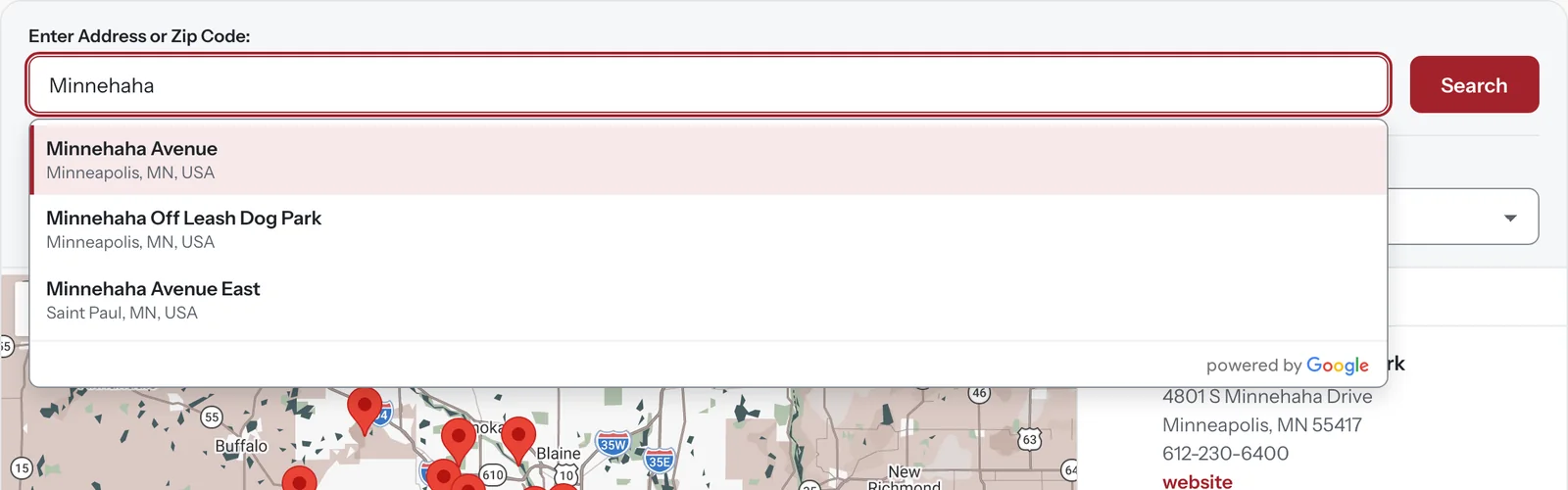
Developers who need the legacy behavior for now can force it with the bh_sl_autocomplete_legacy filter.
Check which API your key uses
- Go to Settings > Cardinal Locator > Primary Settings.
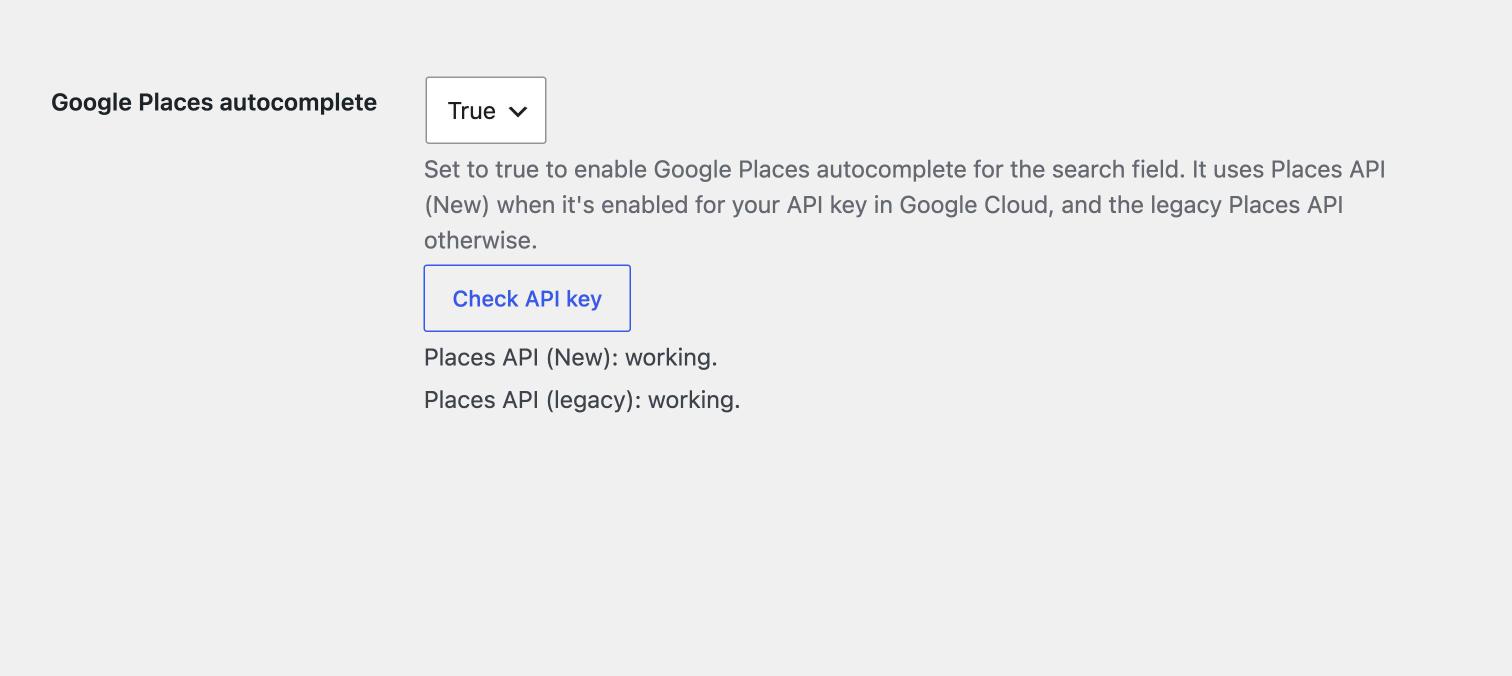
- Find the “Google Places autocomplete” setting, which turns address suggestions on.
- Click “Check API key” under it. Cardinal Locator makes a small test request to each Places API with the key in the “Google Maps API key (front-end)” field, and shows which ones answer.
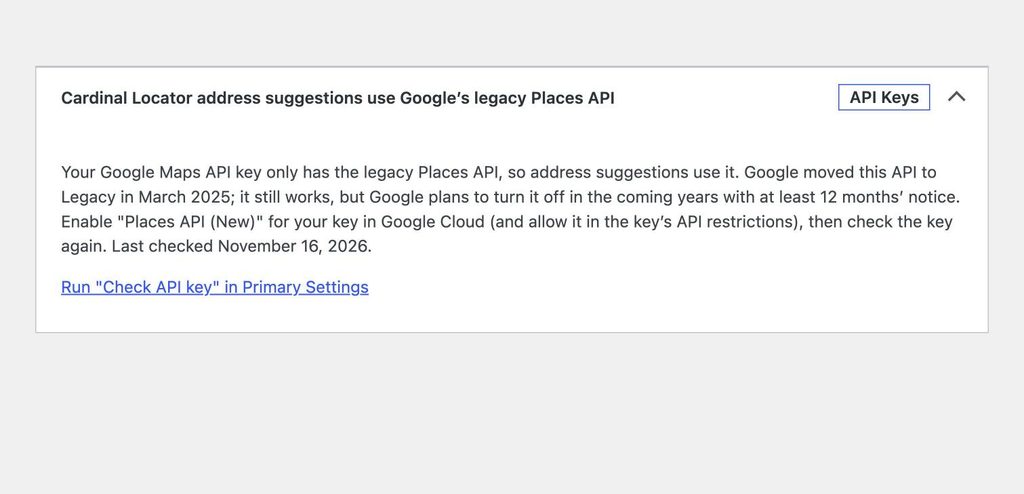
When address suggestions are on, Site Health (Tools > Site Health) shows the last result too. If your key only has the legacy API, or neither, it explains what to change. The result is tied to your key, so if you change the key, Site Health asks you to check again.
Enable Places API (New) for your key
- Open the Google Cloud console and select the project your API key belongs to.
- Go to APIs & Services > Library, search for “Places API (New)” and click Enable.
- Go to APIs & Services > Credentials and open your API key.
- If the key has API restrictions, add Places API (New) to the list of allowed APIs, alongside the Maps JavaScript API and any others it already uses.
- Leave the website restrictions as they are. A pattern for your site, such as
https://example.com/*, covers both your pages and the plugin settings. - Save. Changes can take a few minutes to apply.
- Back in WordPress, click “Check API key” again. You should see “Places API (New): working.”
Do you need to do anything now?
If address suggestions work on your site, nothing is broken. Enabling Places API (New) now takes a few minutes and means you won’t have to rush when Google announces a date for turning off the legacy API. If you’re setting up a new API key, enable Places API (New) from the start, or address suggestions won’t work.
Cardinal Locator has supported Places API (New) since version 1.12.0, and the Site Health check arrived in version 1.13.0. Update from your WordPress dashboard to get both.
Not using Cardinal Locator yet?
Try address suggestions on the live demo, or see pricing to get started.